Modern Çalışma

Excel ÇAPRAZARA Fonksiyonu- Bölüm: 1

ÇAPRAZARA FONKSİYONU DÜŞEYARA fonksiyonunu ~35 yıldır kullanıyoruz. Çalışması için gerekli birçok şartı vardı ve yapabilecekleri kısıtlıydı, dolayısıyla işlevsizdi ama popüler bir fonksiyondu. Herkes…

7 Eyl 2023 estebilisim
Excel ÇAPRAZARA Fonksiyonu- Bölüm: 1

ÇAPRAZARA FONKSİYONU

DÜŞEYARA fonksiyonunu ~35 yıldır kullanıyoruz. Çalışması için gerekli birçok şartı vardı ve yapabilecekleri kısıtlıydı, dolayısıyla işlevsizdi ama popüler bir fonksiyondu. Herkes bu fonksiyonu öğrenmek kullanmak istedi, kimileri doğru kimileri yanlış kullandı kimileri kullanımını hiç anlayamadı bile. 2019’un Ekim ayında artık çok daha basit ve işlevsel bir fonksiyon hayatımıza girdi; ÇAPRAZARA, hem DÜŞEYARA ve YATAYARA‘nın yaptığını yapıyor, hem de isterseniz aradığınız veriyle ilgili tablodaki ilk kaydı veya son kaydı bulabiliyoruz, üstelik almak istediğimiz alanlardaki verileri topluca hücrelere dökebiliyor.


Kabaca anlatmak gerekirse fonksiyonu şu cümleyle aklımıza yazabiliriz; =ÇAPRAZARA( bunu ara ; burada ara ; bana bunları ver ) Aşağıda teknik anlamda da söz dizimini bulacaksınız.

Not: ÇAPRAZARA işlevi Excel 2021 ve 365 sürümlerinde kullanımda.

Söz dizimi / Syntax

ÇAPRAZARA işlevi, bir aralığı ya da bir diziyi arar ve bulduğu ilk eşleşmeye karşılık gelen öğeyi verir. Eşleşme yoksa ÇAPRAZARA en yakın (yaklaşık) eşleşmeyi verebilir.

=ÇAPRAZARA(arama_değeri;arama_dizisi;döndürülen_dizi;[bulunamıyorsa];[eşleştirme_modu];[arama_modu])

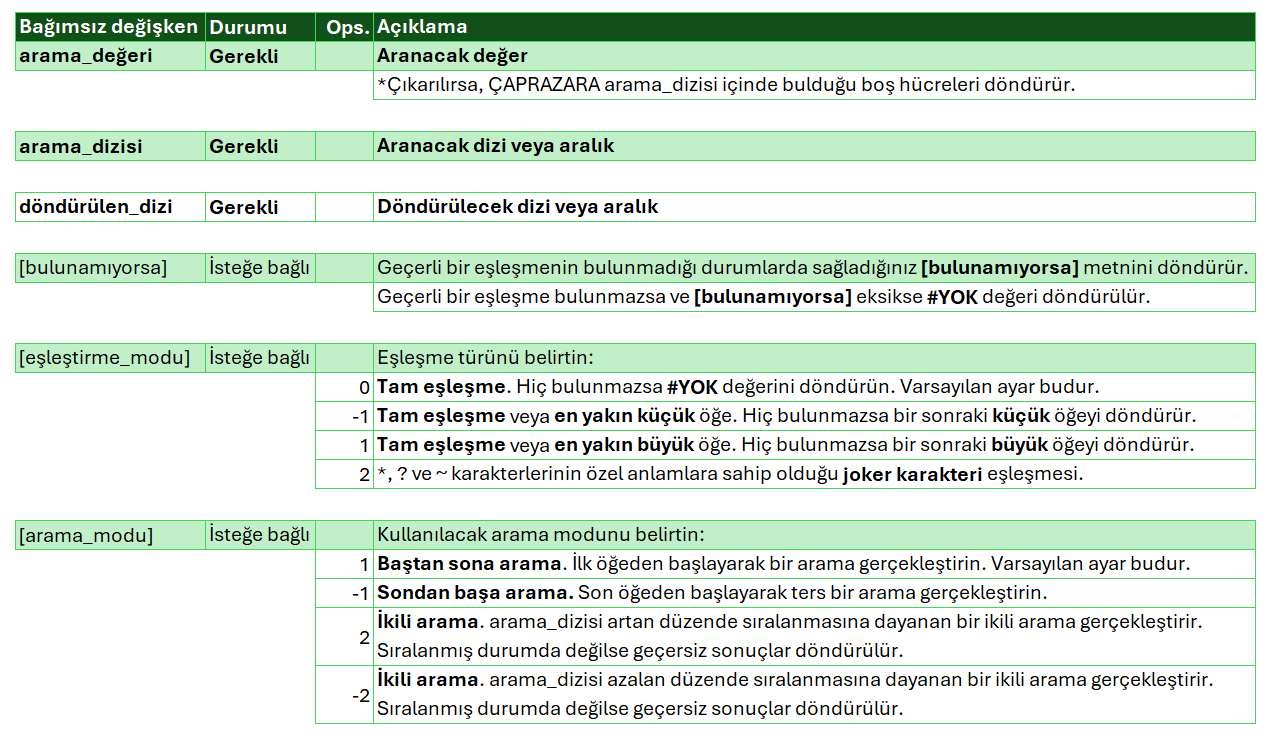
Fonksiyonun çalışması için gerekli ve opsiyonel olan argümanlara bir göz atalım ki bu fonksiyonun bizden neler istediğini ve başka neler yapabileceğimizi anlayabilelim.


Şimdi gelin bu formülün neler yapabildiğini başlıklar altında görelim.

STANDART BASİT KULLANIM

Aşağıdaki tabloda, A2 hücresindeki 3106 kodunu tablodaki F sütununda arayıp bulduğu satırdaki G:I sütunları arasındaki verileri kolayca alabildiğimizi görüyoruz.


Eğer tablonuz aşağıdaki gibi ise; yani tablonuz arama yapacağınız veri ile alt alta ise, A2 hücresindeki veriyi A4:A21 arasında arayıp bulduğu satırdaki B4:D21 arasında bulunan verileri size geri döndürecektir.

ARANILAN VERİ BULUNAMIYORSA

Eğer aradığınız veri tablonuzda yok ise o zaman [bulunamıyorsa] argümanına hücreye yazdırmak istediğiniz bir metni veya onun yerine başka bir formülü yazarak sonuç döndürmesini sağlayabilirsiniz.

DÜŞEYARA fonksiyonunu kullanırken, aradığınız veri bulunamadığında hücreye #YOK hatası / uyarısı yazardı ve siz bu hatayı görmek istemiyorsanız EĞERHATA fonksiyonunu kullanıp; formülden geriye bir hata döndüğünde onun yerine bunu yaz diyerek formülü tamamlardınız. Şimdi ise o sürekli kullandığımız koskoca EĞERHATA fonksiyonunu ÇAPRAZARA‘da [bulunamıyorsa] adında bir argümana sığdırmışlar. Şimdi bu argümanın basitçe kullanımına bakalım.


[bulunamıyorsa] argümanında, veri bulunamadığında formülün geriye “Bulunamadı” ibaresini hücreye yazmasını istiyoruz.

ve sonuç.

Eğer bulunamazsa hücreyi boş bıraktırmak isterseniz ilgili [bulunamıyorsa] argümanına iki tane peş peşe çift tırnak yazabilirsiniz.

ÇAPRAZARA fonksiyonu ile ilgili yazıya ara ara devam edeceğim.

Sevgiler.


Eğitim ve danışmanlıklarımız hakkında detaylı bilgi almak için bize ulaşabilirsiniz.

Paylaş: LinkedIn X WhatsApp

Bu kategoriden diğer yazılar

Modern Work

Excel CROSS Function- Part: 1

CROSSOVER FUNCTION We have been using the VLOOKUP function for ~35 years. It had many conditions for its operation and was limited in what it could do, so it was dysfunctional, but it was a popular function. Everyone...

Sep 7, 2023 estebilisim
Excel CROSS Function- Part: 1

CROSS FUNCTION

We have been using the VLOOKUP function for ~35 years. It had many conditions for its operation and was limited in what it could do, so it was dysfunctional, but it was a popular function. Everyone wanted to learn and use this function, some used it correctly, some used it incorrectly, some could not even understand its use. In October 2019, a much simpler and more functional function entered our lives; CROSS does what VLOOKUP and HORIZONTALLY do, and if you want, we can find the first record or the last record in the table related to the data you are looking for, and it can also bulk convert the data in the fields we want to get into cells.


Roughly speaking, we can write the function in our minds with the following sentence; =CROSS( search this ; search here ; give me these ) Below you will find the syntax in technical terms.

Note: The CROSS-SEARCH function is available in Excel 2021 and 365 versions.

Söz dizimi / Syntax

The CROSSSEARCH function searches for a range or an array and returns the item that corresponds to the first match it finds. If there is no match, CROSS can give the closest (approximate) match.

=CROSS(arama_değeri; arama_dizisi; döndürülen_dizi; [if not found]; [eşleştirme_modu]; [arama_modu])

Let's take a look at the arguments that are necessary and optional for the function to work so that we can understand what this function requires of us and what else we can do.


Now let's see what this formula can do under the headings.

STANDARD SIMPLE OPERATION

In the table below, we see that we can easily retrieve the data between the G:I columns in the row it finds by searching for the code 3106 in cell A2 in column F in the table .


If your table is as follows; that is, if your table is one below the other with the data you will search, it will return the data between B4 :D21 in the row it searched and found in cell A2 between A4:A21 .

IF THE DATA SOUGHT CANNOT BE FOUND

If the data you are looking for is not in your table, then you can write a text you want to print in the cell or another formula in the [not found] argument to return a result.

When using the VLOOKUP function, when the data you are looking for cannot be found, it would write a #YOK error / warning in the cell and if you do not want to see this error, you can use the IFERROR function; When an error returned from the formula, you would complete the formula by saying write this instead. Now they have fit that huge IFERROR function that we use all the time into an argument called [if not found] in CROSS. Now let's look at the simple use of this argument.


In the [if not found] argument, we want the formula to write "Not Found" back into the cell when the data is not found.

and the result.

If it is not found, if you want to leave the cell blank, you can write two consecutive double quotes in the relevant [if not found] argument.

I will continue the article about the CROSS function from time to time.

Love.


You can contact us for detailed information about our training and consultancy.

Related posts